Omnilog Task Wizard
>>> Tools: Omnilog Task Wizard
The OmniLog Task Wizard is a task scheduling application that runs within the OmniLog Data Management Program. It is activated from the Tools menu. There is no Tool Bar Icon for the task Wizard.
Task Wizard Overview
The Task Wizard screen is divided into four areas:
- Task - all the information required for one particular task
- Task Control - creates new tasks, deletes tasks and move through the task list using navigation arrows
- Task Log - to View and Clear a log of past tasks
- Task Wizard Control - to enable or disable the Task Wizard
Task Control
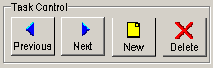
- Previous and Next Buttons are used to navigate through the Task List
- The New Button is used to create a New task
- The Delete Button is used to delete the current task. The current task is the task shown in the Task Area
Task
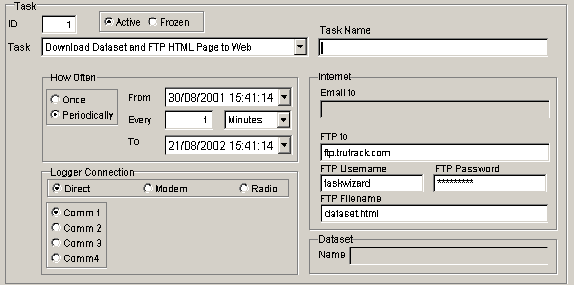
- ID - an automatically generated numeric ID which identifies the task.
- Active / Frozen - tasks can be disabled temporally without deleting the task. If this control is set to Active the task will be carried out, if it is set to frozen the task will not be activated.
- Task - The actual task that will be performed.
- Task Name - A name given to the task by the user. This name identifies the task on the status bar during execution and in the Task Log.
- Schedule - Tasks can be scheduled to occur once at a particular time or to occur periodically between two DateTimes. The time between task activation can be entered in Minutes, Hours or Days
- Logger Connection - The task wizard can connect to loggers directly (on Comm Ports), connected to remote modems or on radio links. If Direct is selected the correct Comm Port must be selected. If Modem is selected the correct Comm Port for the computers modem and the Phone number for the Remote Modem must be entered.
- Internet -
- If the task involves sending an email, the email address must be entered.
- If the task involves creating a web page and uploading it to a web server the ftp address, username and password must be entered as well as the name of the file to be created on the web server. This file name should include the extension .htm or .html
- Dataset - This area is reserved for future development
Task Log
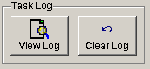
As each task is carried out, the wizard keeps a log detailing the time of execution and the success or failure of the task.
- The View Log button is use to see this log
- The Clear Log button is used to erase all log entries
Task Wizard Control
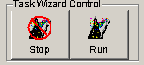
- The Stop button closes the Task Wizard screen with the Task Wizard disabled so no tasks will be executed.
- The Run button closes the Task Wizard screen with the Task Wizard enabled so that any active tasks in the task list will be executed.
Using the OmniLog Task Wizard


