


|
|
|
|
|
>>> View: Values View
>>> Alt+V
>>> 
The Values View function displays a View of the Active Dataset (the Dataset displayed in the Dataset Selector on the Toolbar) with the data shown in Values mode.
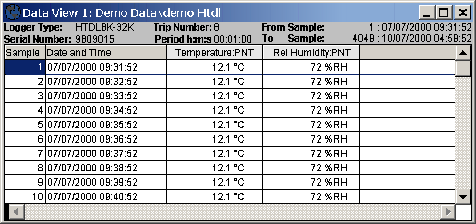
A number of Block Mark and Display functions are available in this mode. These are selected from a popup menu that is displayed on a right mouse click with in the Values display. These functions include:
Start of block |
Marks the current sample as the start of a block of data within the dataset. The block can be used to display graph and statistics for a block of data within a aset |
End of Block |
Marks the current sample as the end of a block of data within the dataset. The block can be used to display graph and statistics for a block of data within a Dataset |
Clear Block |
Clears a block so that the entire dataset can be viewed in graph and statistics mode |
Go to Sample... |
Finds a Sample by number, in the Values section of a Dataset View |
Go to Date Time... |
Finds a Date Time in the Values section of a Dataset View |
Values View |
Sets the Dataset View to Values only. |
Statistics View |
Sets the Dataset View to Statistics mode only. Any blocks set in the previous values mode will be reflected in the new Statistics View |
Graph View |
Sets the Dataset View to Graph mode only. Any blocks set in the previous values mode will be reflected in the new Graph View |
Values and Statistics |
Sets the Dataset View to a combination of both Values and Statistics modes |
Graph and Values |
Sets the Dataset View to a combination of both Graph and Values modes |
Graph and Statistics |
Sets the Dataset View to a combination of both Graph and Statistics modes |