Using the Omnilog Task Wizard
Using the Omnilog Task Wizard to automatically download data from a logger on a Comm Port at 1am each night.
- Select the Omnilog Task Wizard from the Tools Menu
- Click the New button to create a New Task
- Select "Download Dataset" from the task box

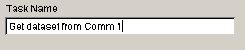
- Give the Task a meaningful name. eg "Get dataset from Comm 1"
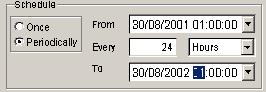
- Under Schedule Select Periodically, Every 24 hours, starting from 1am tomorrow to 1am in a years time
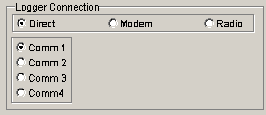
- Under Logger Connection Select "Direct" and the required Comm port
Omnilog will connect to the logger on Comm 1 and download data at 1am every night for a year, assuming that Omnilog and the Task Wizard are running.
Using the Omnilog Task Wizard to automatically download data from a logger on a remote modem at midday once a week.
- Select the Omnilog Task Wizard from the Tools Menu
- Click the New button to create a New Task
- Select "Download Dataset" from the task box
- Give the Task a meaningful name. eg "Get dataset from Whites Bridge"
- Under Schedule Select Periodically, Every 7 days, starting from noon tomorrow to noon in a years time
- Under Logger Connection Select "Modem" and the required Comm port for the computers modem and the phone number of the remote modem
Omnilog will connect to the logger via the modem on Comm 2 and the remote modem at 384 2744 and then download data at noon once a week for a year, assuming that Omnilog and the Task Wizard are running.
Using the Omnilog Task Wizard to automatically read real time data from a logger and email it to a given email address once every 30 minutes for 1 day.
- Select the Omnilog Task Wizard from the Tools Menu
- Click the New button to create a New Task
- Select "Read Realtime and Email" from the task box
- Give the Task a meaningful name. eg "Email Realtime to Tim"
- Under Schedule Select Periodically, Every 30 Mins, starting from midnight today to midnight tomorrow
- Under Logger Connection Select "Modem" and the required Comm port for the computers modem and the phone number of the remote modem
- We now have to enter the email address to send the email to
- Omnilog will connect to the logger via the modem on Comm 2 and the remote modem at 384 2744 and get the realtime readings every 30 minutes and email them to tim@abc.com for one day.
Using the Omnilog Task Wizard to automatically download the real time data from a logger, create a web page from the real time data and publish the web page to a web server.
- Select the Omnilog Task Wizard from the Tools Menu
- Click the New button to create a New Task
- Select "Read Realtime and FTP to WEB" from the task box
- Give the Task a meaningful name. eg "Publish Realtime to WEB"
- Under Schedule Select Periodically, Every 24 hours, starting from 1am tomorrow to 1am in a years time
- Under Logger Connection Select "Direct" and the required Comm port
- We now have to setup the website information including the name of the FTP site, the username, the password and the filename for our web page
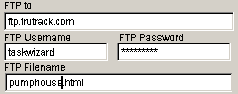
Omnilog will connect to the logger on Comm 1 and read the realtime data at 1am every night for a year, assuming that Omnilog and the Task Wizard are running.
Omnilog will then create a Web Page from the realtime readings called pumphouse.html. If the computer is connected to the internet, Omnilog will then publish the web page to ftp.trutrack.com with the username taskwizard and a password.


