|
|
|
Omni Data Transporter
for Palm
OS PDA's

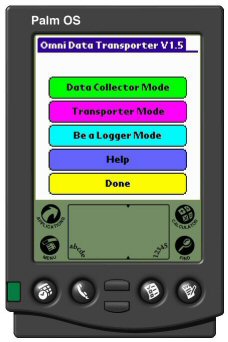
This is a software application that runs on Palm PDA's. It can be used to download and store logger data to a palm device, in the field, and upload the data to a PC running the Omnilog software (Ver 1.38 or greater) at a later date. The Palm device can be run in three modes:
DATA COLLECTOR MODE
In data collector mode you connect the Palm PDA to a datalogger and press the "Connect" button.
The Palm will communicate with the logger and display information on the loggers status.
Once this information has been displayed a "Download" button will also appear.
Press this button to download all current data from the logger.
This button will show the progress of the download and disappear when the download has been successfully completed. After download a "Restart the Logger" screen allows the user to Start the logger again in "Stop when Full" or "Run Looping" mode if required.
TRANSPORTER MODE
In transporter mode, you connect the Palm PDA to a computer running the Omnilog Software (Version 1.38 or greater). The Omnilog Software recognizes the Palm PDA as a "Dataset Transporter" and establishes an uplink with the Palm PDA. The "Transporter Window" will automatically display on the PC and individual datasets, or all datasets can be downloaded as required.BE A LOGGER MODE
In "Be a Logger Mode" you connect the Palm PDA to a computer running the Omnilog Software.
You then select the dataset to be uploaded to the computer and press the 'Standby for Uplink' button.
The Palm PDA them mimics the operation of the logger for the selected dataset.
The Omnilog software can be used for download as if the logger was connected directly to the Omnilog Computer.
Installing the Application on your PALM device
The Omni Data Transporter Palm PDA Application is distributed with Omnilog Version 1.38 and greater
The program file is OmniDT.prc. When you install Omnilog the OmniDT.prc file will be put in the PALM OMNIDT folder, off the main OMNI folder. Upload (Hotsync) the OmniDT.prc file to your Palm device in the usual way.
Connecting the Palm PDA to the Logger
To connect a Palm Hotsync Serial Cable to the Loggers Download Cable you will need a DLCA Download Cable Crossover Adaptor. Theses can be purchased or made up as follows:
- Male 9 pin D to Male 9 pin D
- Pin 1 to Pin 4
- Pin 2 to Pin 3
- Pin 3 to Pin 2
- Pin 4 to Pin 1
- Pin 5 to Pin 5
- Pin 7 to Pin 8
- Pin 8 to Pin 7
Which Palm PDA's can be used as Data TransportersThe following Palm PDA's have the Universal Connector which includes the RS232 serial port and can be used with TruTrack loggers:
Tungsten™ T Handheld
Tungsten™ T2 Handheld
Tungsten™ T3 Handheld
Tungsten™ C Handheld
Tungsten™ W Handheld
Zire™ 71 Handheld
Palm™ m515 Handheld
Palm™ m505 Handheld
Palm™ m500 Handheld
Palm™ i705 Handheld
Palm™ m130 Handheld
Palm™ m125 HandheldThe Zire 21 and the Tungsten E are USB only and can not be used with TruTrack loggers
2008 Update
Currently listed Palm models include:
Z22 (no RS232) can't be used with data loggers
TX has Multi Connector - Can be used with TruTrack data Loggers
Tungsten E2 has Multi Connector - Can be used with TruTrack data Loggers
Info from http://www.palm.com/us/products/resources/comparison-handheld.html
Details on the Multi Connector can be found at http://en.wikipedia.org/wiki/Athena_Connector
I can not find any Multi Connector to RS232 cables on Palm sites but there are third party cables available
See PDCT5-M9-6 at http://www.pcables.com/cat2.html
and http://serialio.com/products/cables/PalmMulti_RS232.php (no power jack version)
Note: If you purchase an adapter cable with a male 9pin sub D connector it will connect directly to our DLC3 download cable.
Note: If you purchase an adapter cable with a female 9pin sub D connector you will require a DLCA cross over adapter from TruTrack to connect between the DLC3 and the Palm cable
Installing the OmniDT application on a Palm device
Install the software that was supplied with the Palm device on to your computer. Connect the USB cradle to a USB port on the computer and follow the instructions provided by Palm to establish a Hotsync connection between the Palm device and the computer.
To upload the OmniDT Data Transporter application to the palm device:On you computer
Select Start
Select All programs
Select Palm Desktop
Select Install Tool
Select Add
Select OmniDT.prc from C:\Program Files\OMNI\PALM OMNIDT
Click DonePut the Palm device in the cradle (connected to the computer USB port)
Push the Hotsync button on the cradleThe Hotsync manager will install the OmniDT Data Transporter application on the Palm device